How to use Rosebud AI
Create, test, and publish your first game
Turn a game idea into something you can play. Watch the beginner overview, then follow the steps to create a project, make changes with Rosie, and share your result. No coding experience needed.
From prompt to play
See project creation, the editor, and publishing before trying your own idea.
A 5-minute walkthrough of creating, editing, and publishing a game. Watch on YouTube.
One small game. One complete workflow.
A browser and an account
Use a desktop or laptop for this keyboard-controlled exercise. Sign in when you are ready to create.
Credits to generate
Generation uses credits. Your allowance depends on your account and plan. See current plans and limits.
A simple starting point
Try a small endless runner, then make one change. The written exercise is a separate example you can adapt.
Describe your first game
Start with one playable idea. Tell Rosebud what the player does, how they control it, and what ends the game.

Prompt to try
Create a 3D endless runner with neon walls. The player moves forward automatically, uses A and D to dodge obstacles, and presses Space to jump. Show a score that increases with distance and a restart button after a collision.
Enter a prompt
Use the prompt input at the end of this page. Try the example prompt or describe your own small game, then select Create. Sign in when prompted.
Shape the idea
If Rosebud asks follow-up questions, choose the options that fit your idea. For this exercise, keep it 3D, desktop, and single-player. Let the first version finish generating before asking for changes.
Check before moving on: You reach the editor and, when generation finishes, a game appears in Preview. Your art and layout may differ from other projects; check the controls and goal instead of expecting an identical image.
Go to the prompt input ↓Play, change, and test again
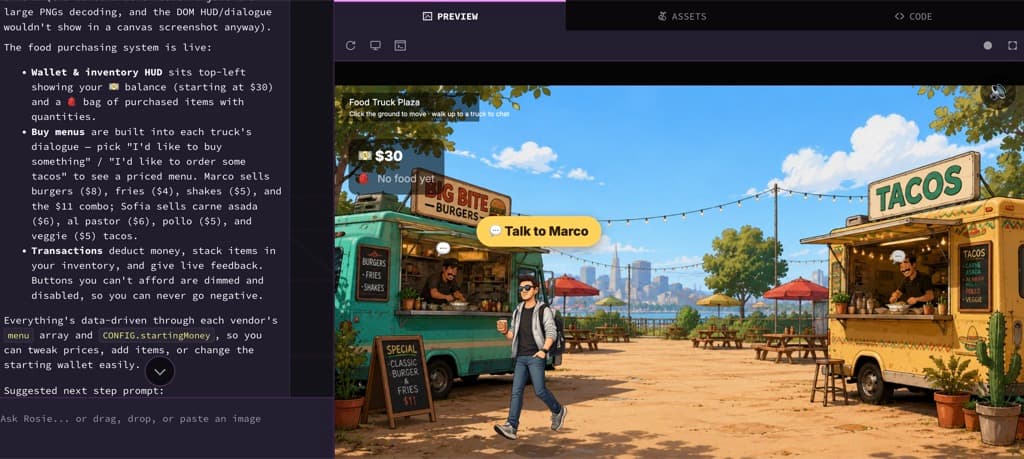
Use the game preview to try your idea, and the chat with Rosie to improve it. A small change is easier to judge than a long list of requests.
Prompt to try
Make the starting speed slower so a new player has more time to dodge the first obstacles. Keep the same controls.
Try the controls
Click inside Preview before using the keyboard. In the runner exercise, try A and D, jump with Space, and collide with an obstacle. Check that the score changes and the restart button starts a new run.
Ask Rosie for one change
Describe the result you want in chat. For example, slow the runner down to make the first few seconds easier. Wait for the update, then play again to compare.
Explain problems precisely
Tell Rosie what you did, what happened, and what you expected. “After I hit an obstacle, Restart does not start a new run” is more useful than “the game is broken.”
Check before moving on: The change is visible when you play again, and movement, scoring, and restarting still work. You do not need to open the Code tab to follow this lesson.
Publish a game you can share
Once the basic game works, give someone else a chance to play. Their first attempt will show you what to improve next.
Publish from the editor
Wait for generation to finish, then select Publish in the editor toolbar. Review the game URL in the panel and select Publish to make this version available to play.
Open the published link
Select Share, copy the published game link, and open it in a new tab. This is the link to send to other players. Try the controls, score, and restart button once more on the published version.
Improve it with feedback
Ask a friend whether the controls and goal are clear. Return to the editor to make changes, then open Publish and select Publish update so players get the new version.
Check before moving on: Your published link opens the game, and another person can understand how to play. You have completed the create, test, improve, and share workflow.
Your first-game questions
Do I need coding experience to use Rosebud AI?
No coding experience is required for this tutorial. Describe your idea and changes in plain language, then test the result in Preview. Learning to give clear instructions and check the game is part of the process.
What do I need before I start?
Use a desktop or laptop browser for this keyboard-controlled exercise, and sign in to a Rosebud account when you create. Generation uses credits; the amount available depends on your account and plan. Check the current pricing page for limits and included features.
Why does my game look different from the video?
AI-generated projects can vary even when the starting prompt is similar. The video introduces the workflow; the written runner exercise is a separate example. Use the checkpoints to verify controls, scoring, and publishing rather than trying to match every visual detail.
What should I do if the preview is blank or a control does not work?
First wait for generation to finish, then restart the preview and click inside it before using the keyboard. If the problem continues, tell Rosie what you tried and what you saw. Include a screenshot or the visible error message when available.
Can I go back after a change I do not like?
Open History in the editor to inspect earlier versions. Preview a version that worked before deciding how to continue. Test the version you want to share before publishing it.
Where to go next
Build on the basics with a focused lesson. Older videos may show a different editor layout.
Build a 2D game →
Explore a worked example of movement, enemies, and scoring.
Add multiplayer →
Continue with a separate guide to multiplayer and Supabase setup.
Explore more tutorials →
Find lessons for different game genres and creative workflows.
Ask the community →
Share your progress and get help from other Rosebud creators.
What will you make?
Describe your game below. Start small, play it, then make it yours.
Loading creation form…